How to enable Live Translation
Learn the two ways to enable live translation in your calls. For adhoc meetins using our Chrome extension and for scheduled calendar meetings.
Written By Yusef Jacobs
Last updated 12 months ago
How does Live Translation work?
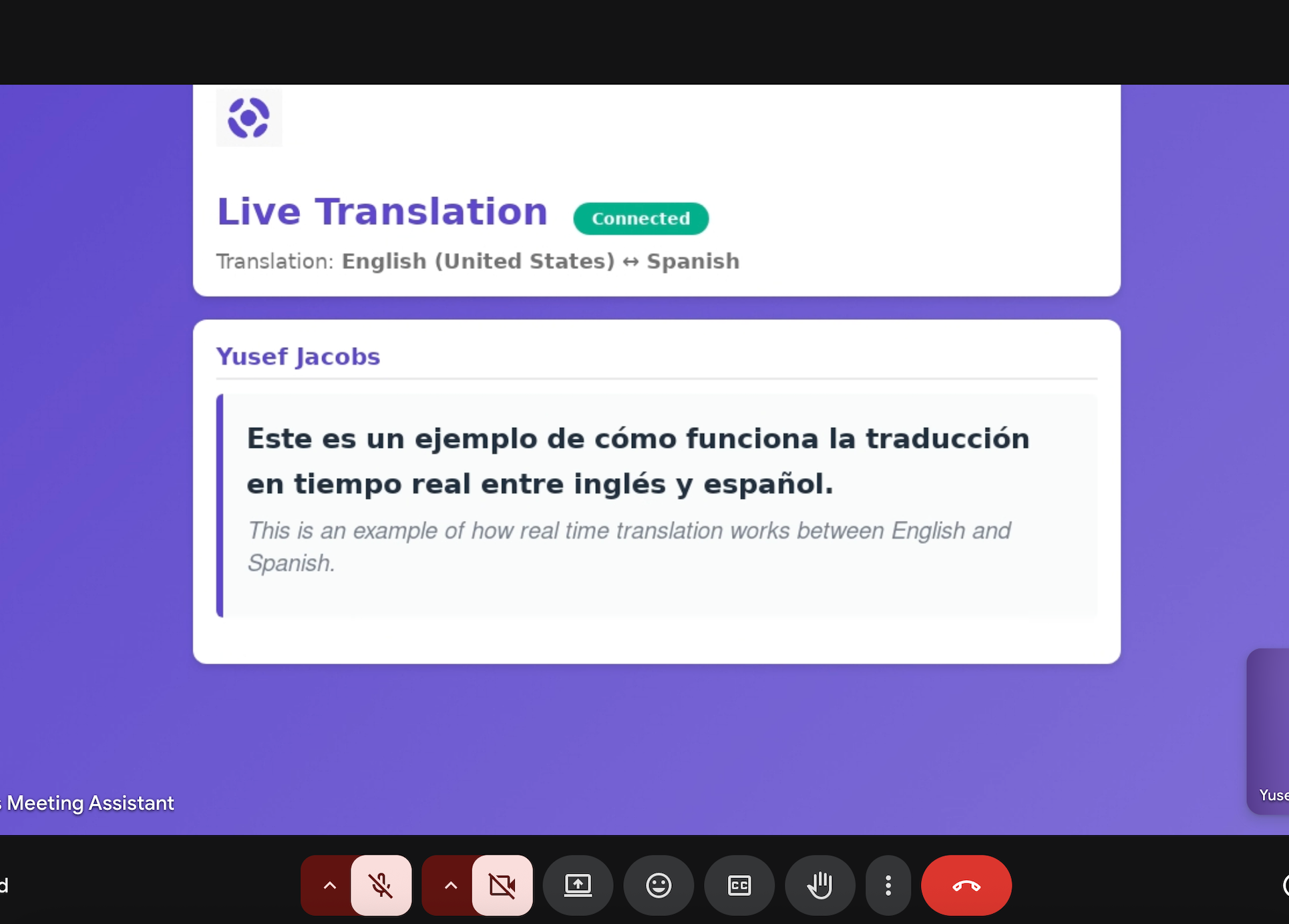
Jamy’s Live Translation functionality works by having the bot that joins the call share its screen and display a webpage with real-time transcription and translation of what is being said in the call. This means that all participants in the call can see the webpage with the live transcription and translation even though they don’t have a Jamy account.
We support ultra low latency and super high accuracy. Additionally, if you’ve added any Custom Words, they will automatically be supported in both the transcription and translation
Enable Live Translation in scheduled meetings
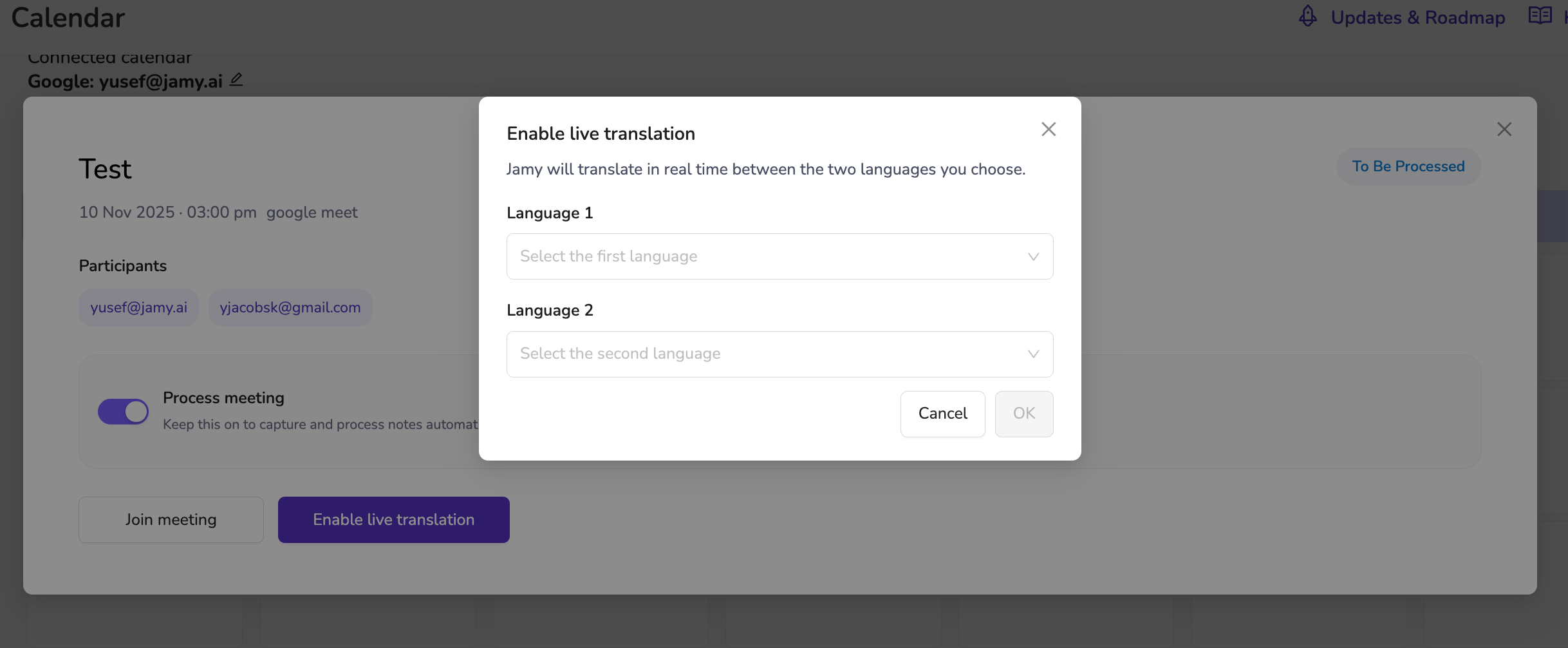
To enable Live Translation in meetings that exist in your Calendar just go to the Calendar section in Jamy, click on the meeting you want to enable Live Translation and then choose the two languages between which you want to translate:
Enable Live Translation in adhoc meetings
To enable Live Translation in an adhoc meeting, meaning a meeting that does not exist in your calendar, you first have to install our Chrome Extension.
Once you have the Chrome Extension installed, it will prompt you to include Live Translation in your calls:
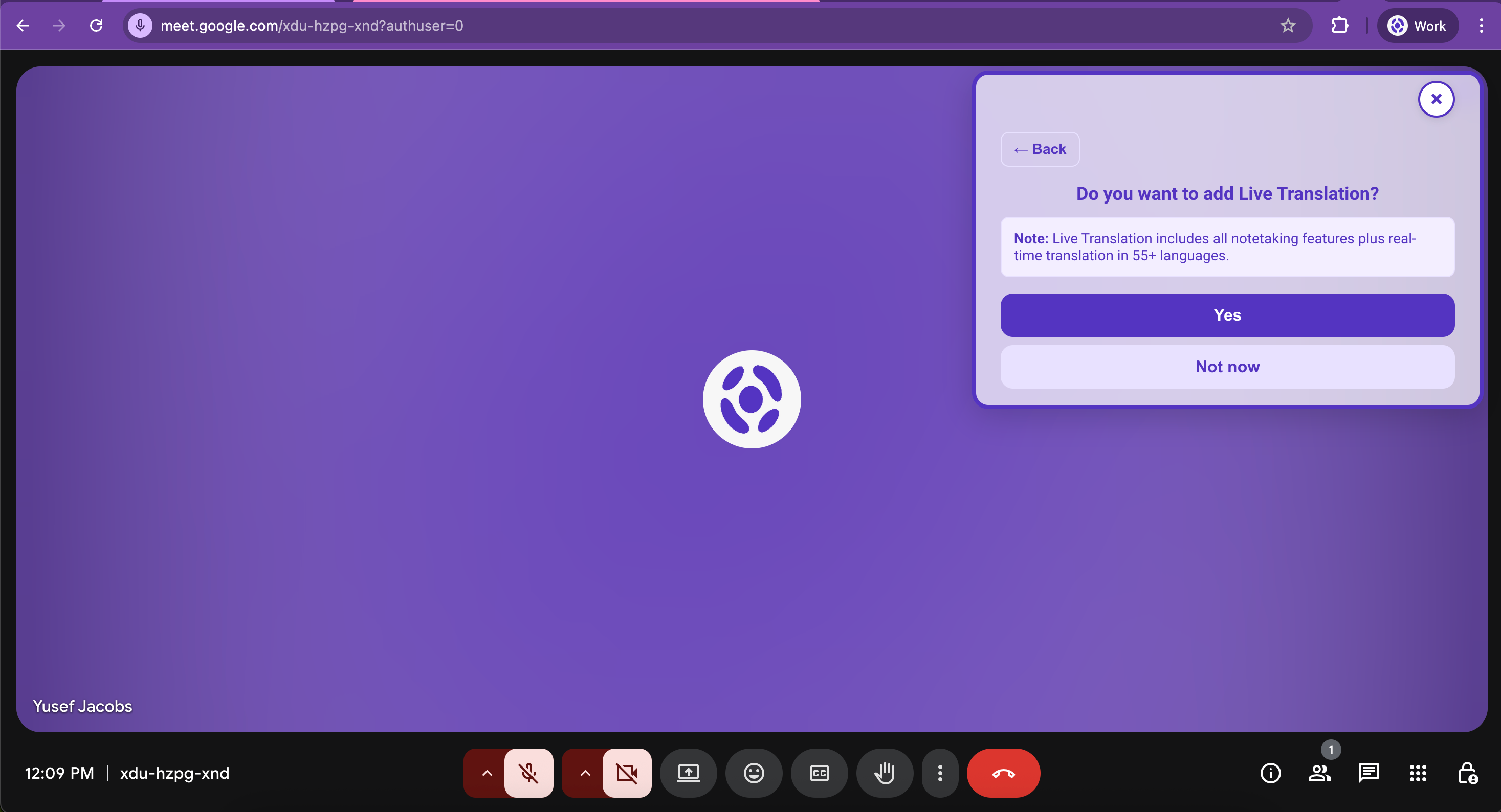
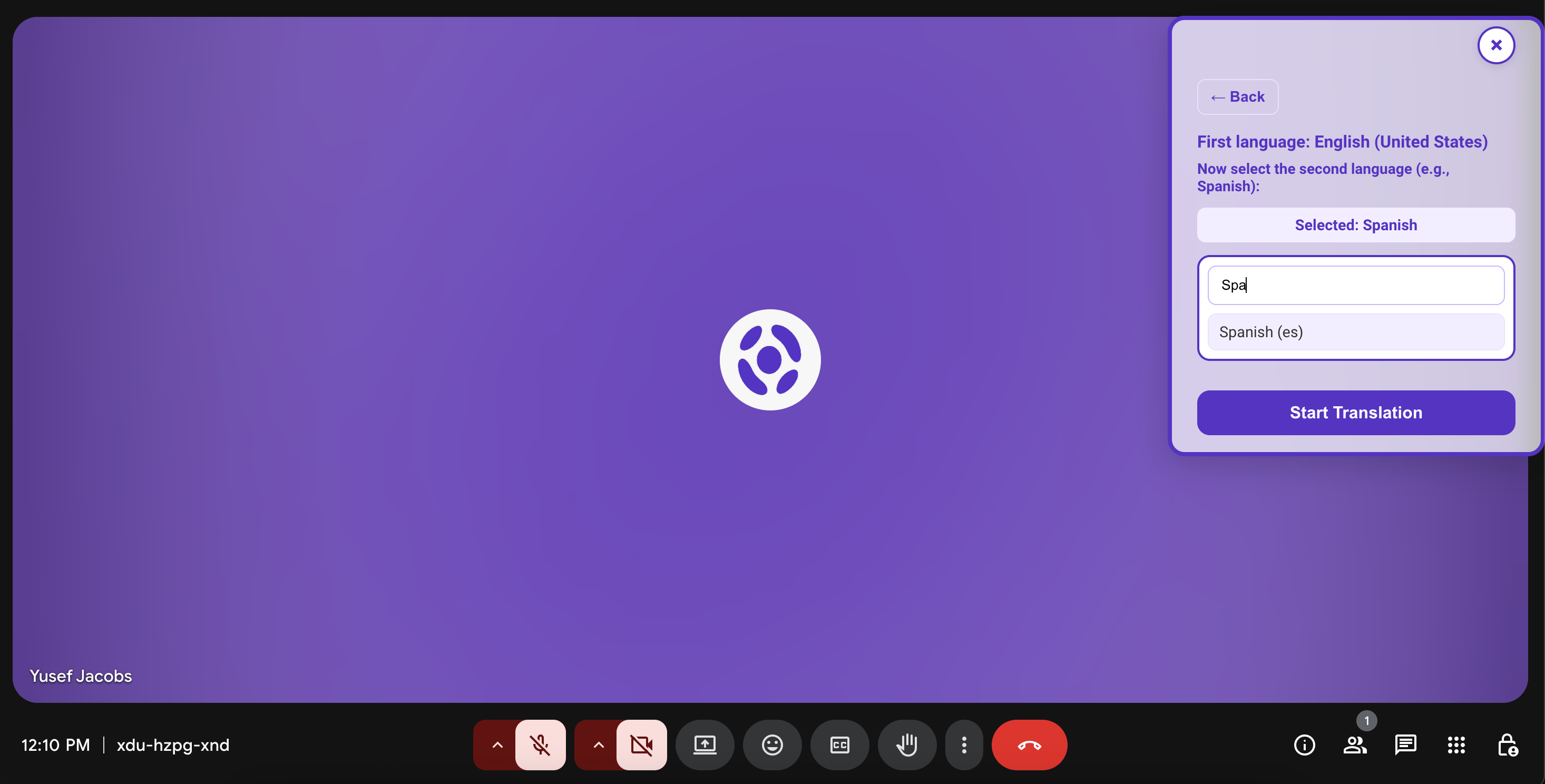
Click Yes and then choose the two languages you want to translate to back and forth:
Was this helpful?
Still need help? Ask the team