Connecting Jamy to your Meetings
This article explains the two different ways you can connect Jamy to your video conferences, allowing your Assistant to join meetings, record them, and generate detailed meeting reports automatically.
Written By Jamy
Last updated 5 months ago
1. Connect Your Work Calendar
You can connect your calendar from two different places in Jamy:
Integrations
Settings
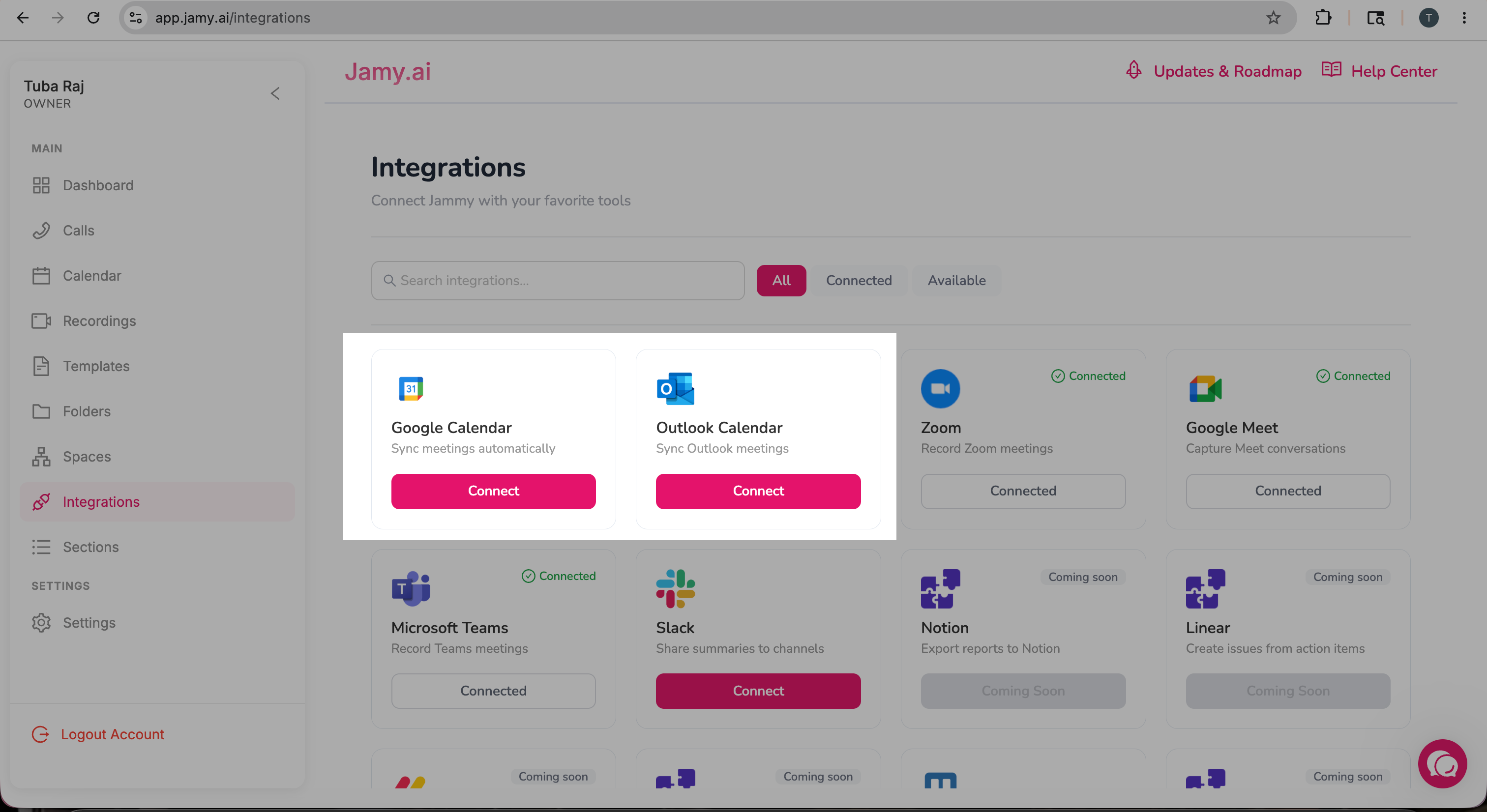
A) Through the Integrations Page
Go to the Integrations section, where you’ll see options to connect either:
Google Calendar
Outlook Calendar
If you do not see the calendar connection option, please make sure your account is on one of the supported plans:
Pro
Global Business
At the moment, calendar connection is only available on these plans.
B) Through the Settings Page
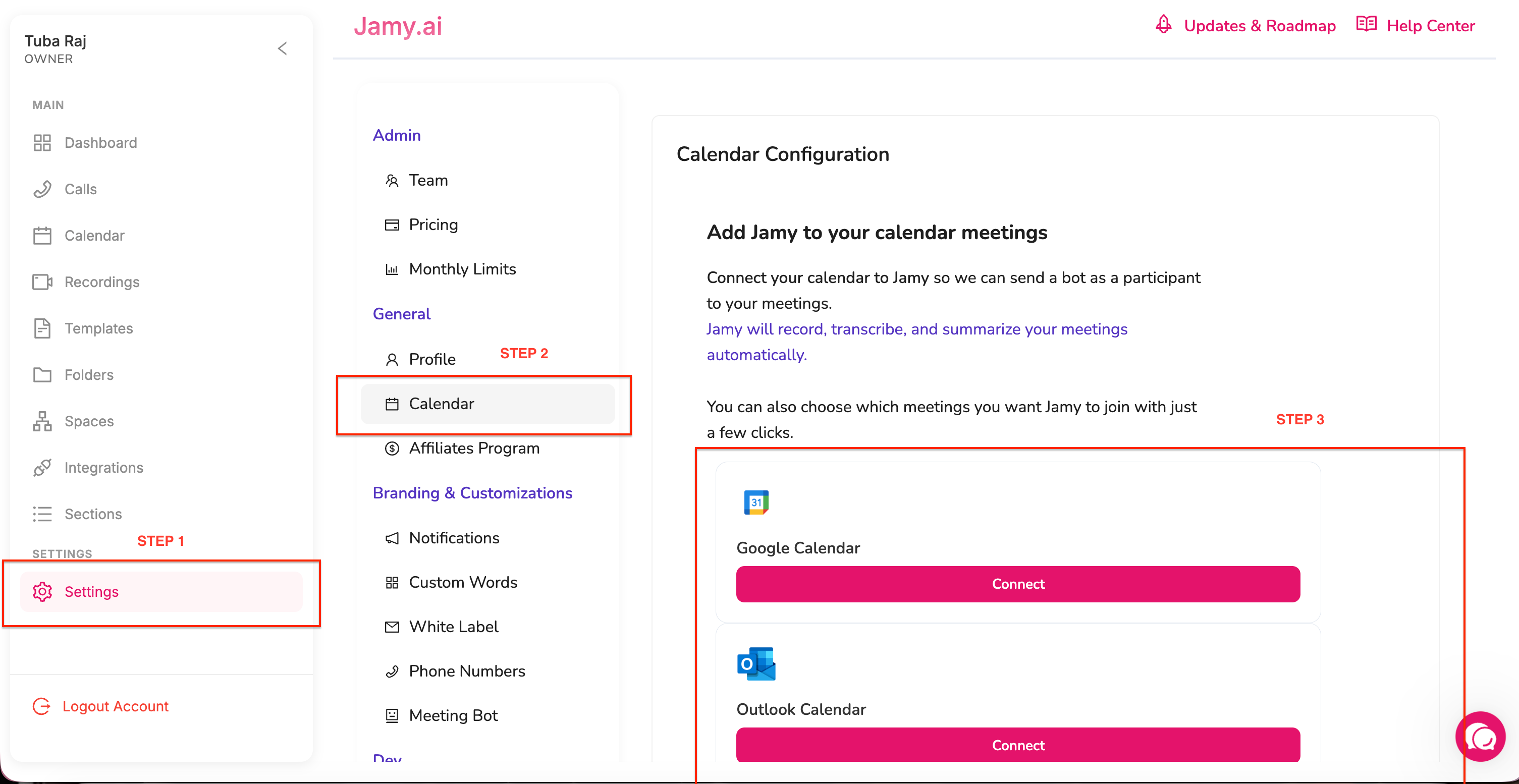
Step 1:
Go to Settings from the left sidebar menu.
Step 2:
Inside Settings, click on Calendar.
Step 3:
Choose your preferred calendar provider:
Google Calendar
Outlook Calendar
Then click Connect to link your calendar with Jamy.
NOTE
By default Jamy is configured to join all your meetings. But you can change that:
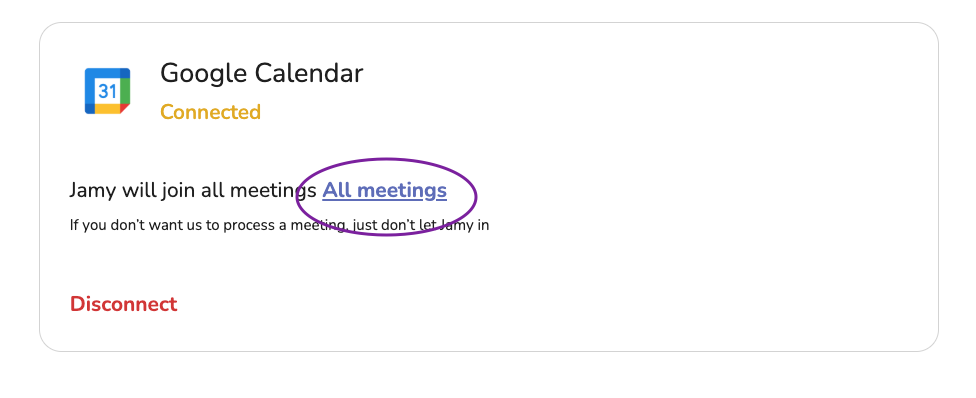
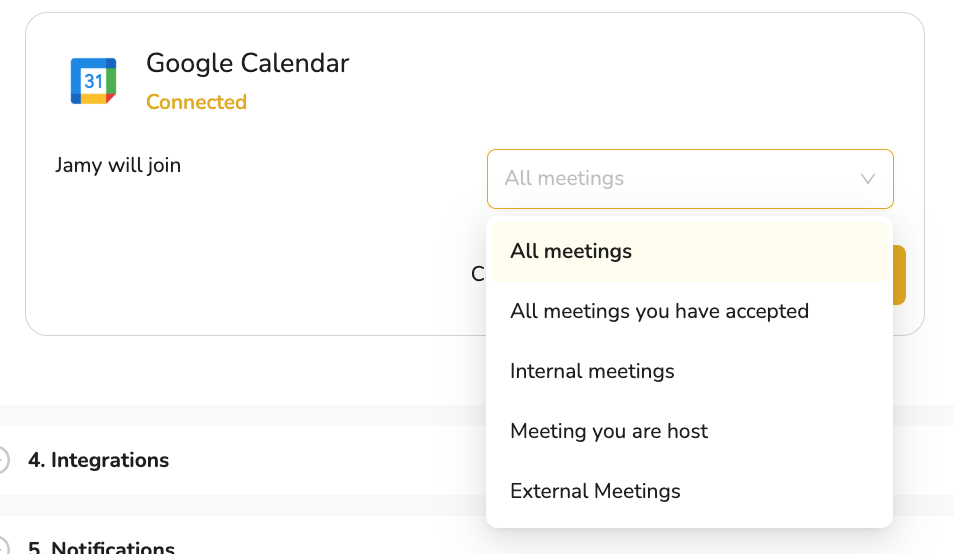
Once you've connected your Calendar, all your meetings from that Calendar will appear in the Reports section in Jamy. There, you can choose each individual meeting and decide whether you want Jamy to process it or not.Done! Now Jamy will join the meetings you choose :)
By connecting your Calendar Jamy will join your meetings independent of the meeting platform you use. Whether it’s Google Meet, Zoom, Teams or Webex .
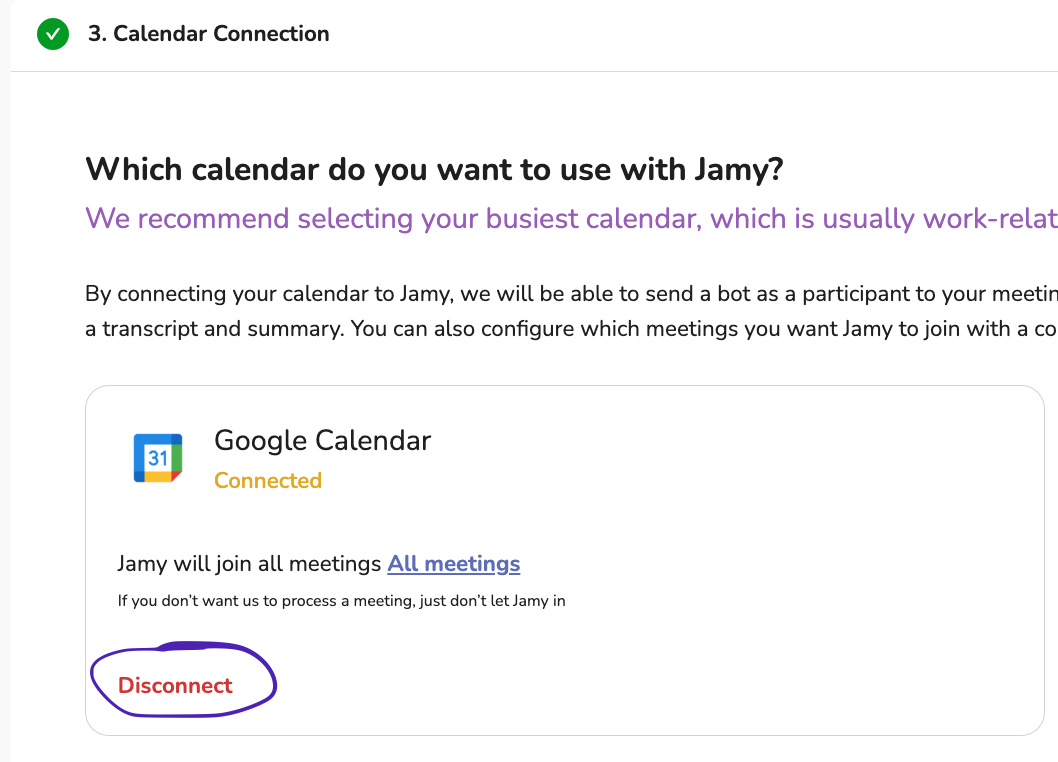
If you want to disconnect your calendar and therefor disconnect Google Meet, Zoom, Teams and Webex, just go to Settings, Calendar Connection and then click on disconnect:
2. Manually send Jamy to a meeting
If you want Jamy to join a meeting that does not exist in your Calendar, you can manually send Jamy to that meeting.
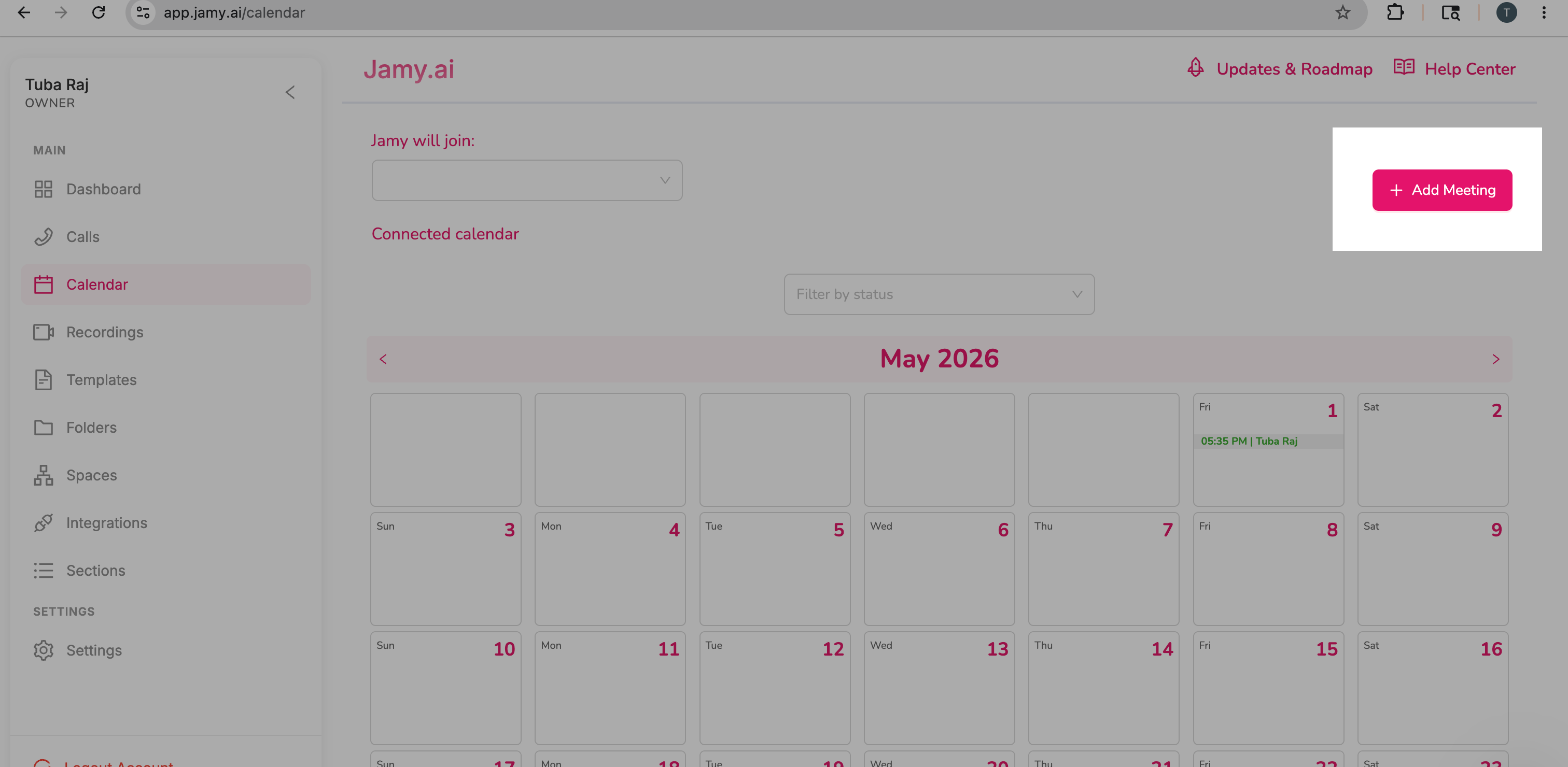
Go to the Calendar section and click on Add Meeting.
You will see two options:
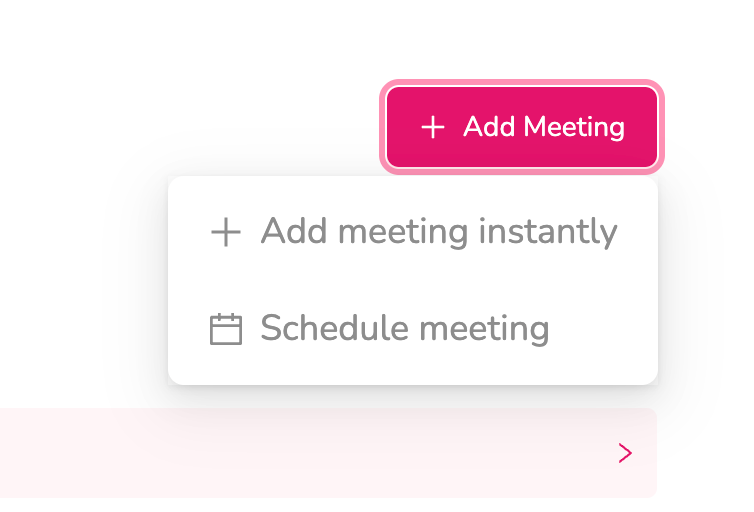
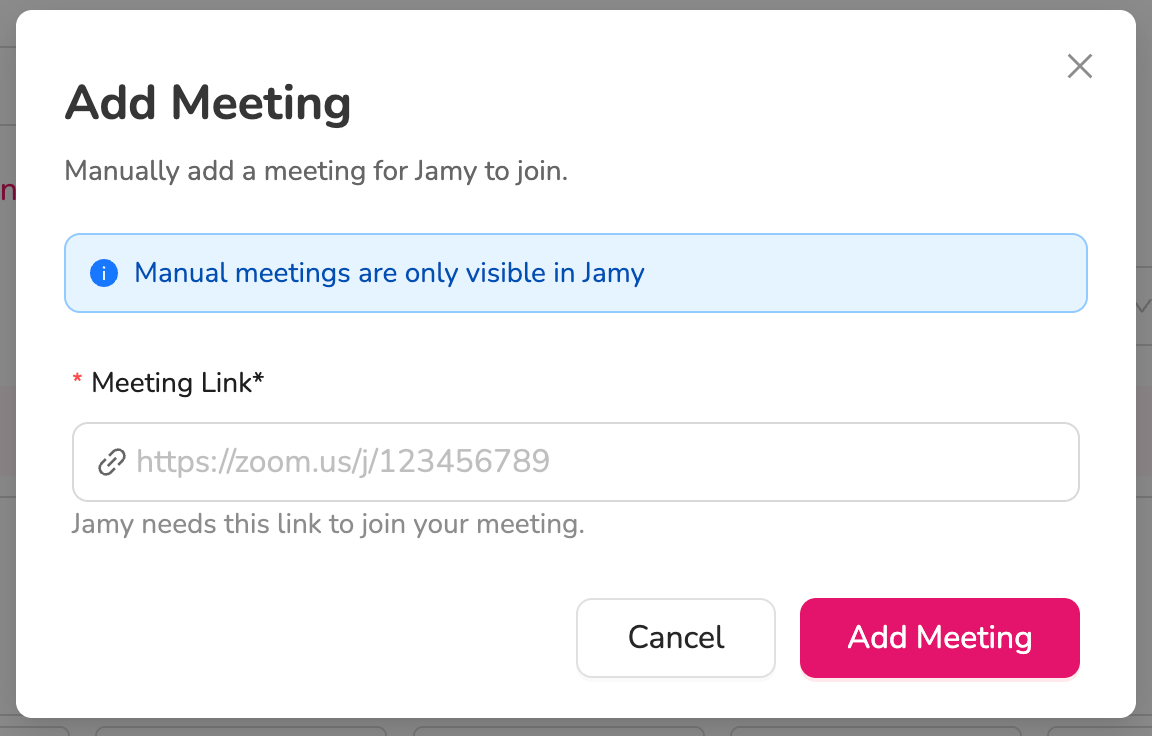
1. Add Instant MeetingChoose this option if the meeting is already created and currently in progress.
Simply paste the meeting link, and Jamy will join the meeting automatically within approximately 2 minutes.
2. Scheduled Meeting
Choose this option if you want Jamy to join a meeting at a future time.
Simply enter the meeting details and select the date and time you would like Jamy to join.
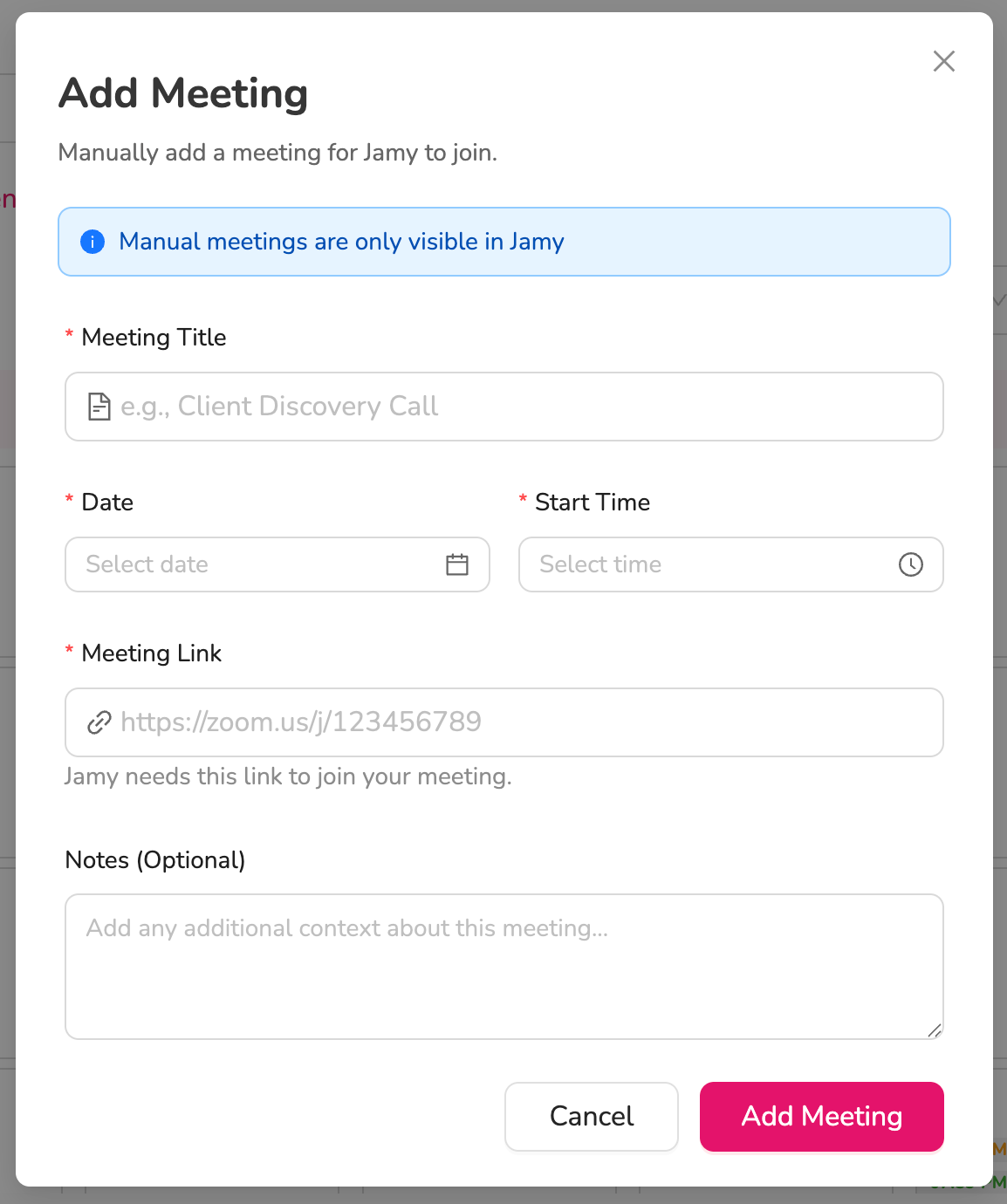
The Meeting URL field accepts URL from Zoom, Google Meet and Microsoft Teams.
If you want to crate a Zoom meeting, you first need to install the Jamy Zoom App using this link: https://zoom.us/oauth/authorize?response_type=code&client_id=c2Vq0R7aSBe58v_5OefOug&redirect_uri=https://helpcenter.jamy.ai/en/help/articles/7977014-connecting-jamy-to-your-meetings
Remember that for Zoom the meeting password should be embedded in the meeting_url. For example, when you create a Zoom meeting and copy that meeting invite, the password param is pre-embedded in the meeting URL like this: https://test.zoom.us/j/82138182257?pwd=iDyqE8GHJgqGKL8T4EBimlIpmp4UET.1
After you click Save, Jamy will join your meeting. It might take a couple of minutes.
Was this helpful?
Still need help? Ask the team